Prosvita v4.0: an AI assistant that filters, gamification with its own permissions, and clearer invitations
Prosvita v4.0 carries on from the summer releases: a school should find what it needs quickly and control precisely who sees what. In this release the AI assistant learned to narrow lists with filters, gamification got separate permission groups, and the Invitations page and notification settings became easier to read.
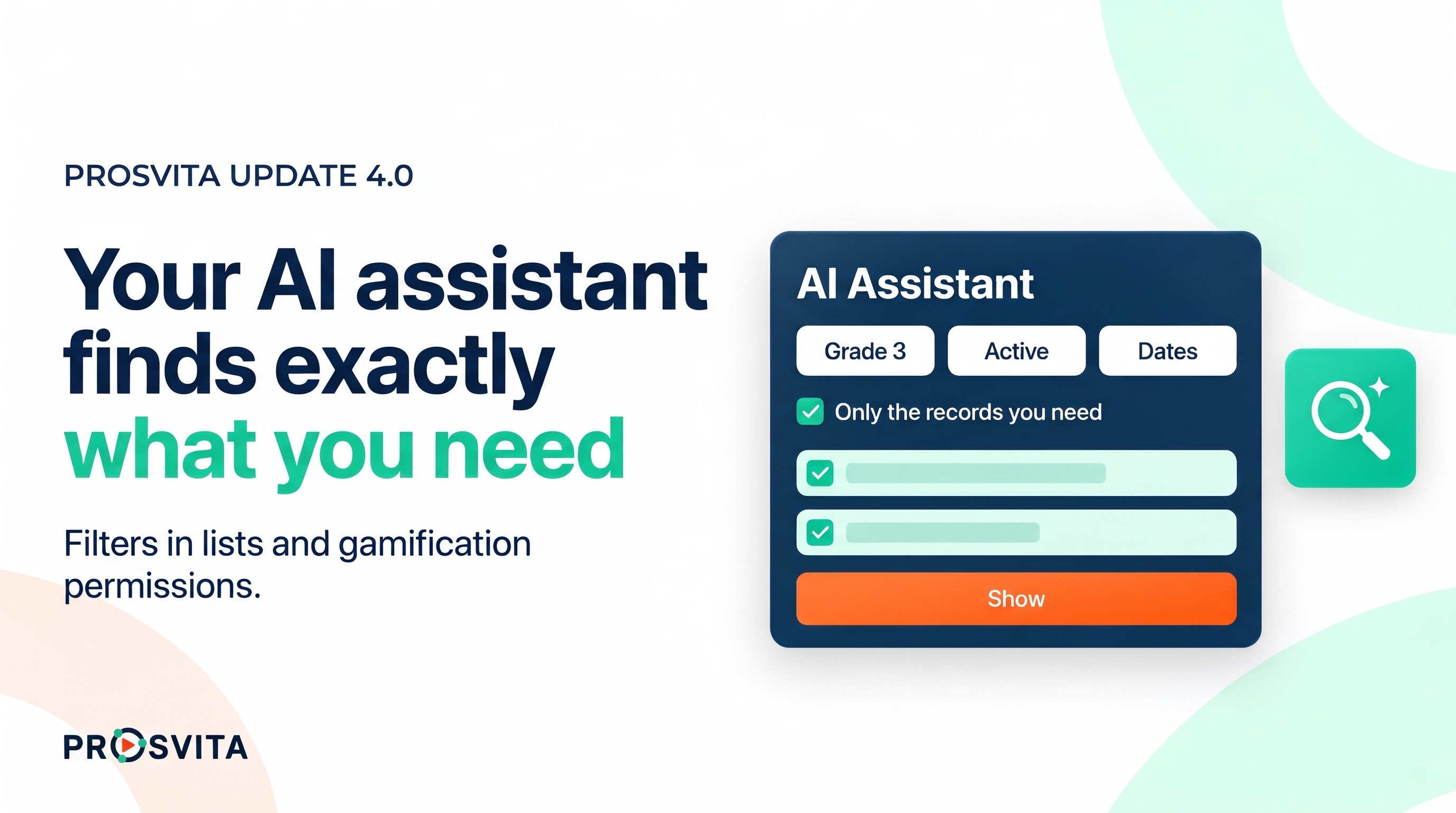
An AI assistant connected to Prosvita over MCP can now ask for just the records it needs instead of a whole list: the sections of one grade level, only the active records, or events between two dates. It also sees the user's roles in every school they work in, and it can work with the gamification inventory.
Leaderboards are now a gamification module of their own, and Quests, Game World Achievements and Game World User Inventory have their own permission groups. Quests and achievements also gain a new event: a user joined the school.
The rest of the release is fixes to workspace templates, the Super School archive, Setup, the staff list and signature records.
Key features for schools
The AI assistant finds exactly what you need
Since v3.50 Prosvita has supported MCP, the open protocol through which AI assistants such as ChatGPT or Claude work with other systems. Until now the assistant could only read a school list, such as sections or subjects, in full, page by page. Now it can apply the same filters as the list page.
The assistant searches by text ("sections with A in the name"), by a value from a list ("only active", "grade level 3"), and by a range of dates or numbers. Every request stands on its own: the next request without a filter returns the full list again. The ordinary filters on the platform's pages work exactly as before.
Three more changes make the assistant more reliable:
- The assistant's list of tools takes into account the user's roles in every school they work in, not just one.
- The platform's answers reach the assistant in a clear structure, so it understands the result of each action more accurately.
- The assistant can look at a student's gamification inventory and add a game object to it, when the person who connected it has that permission.
As before, the assistant acts only within the permissions of the user who connected it.
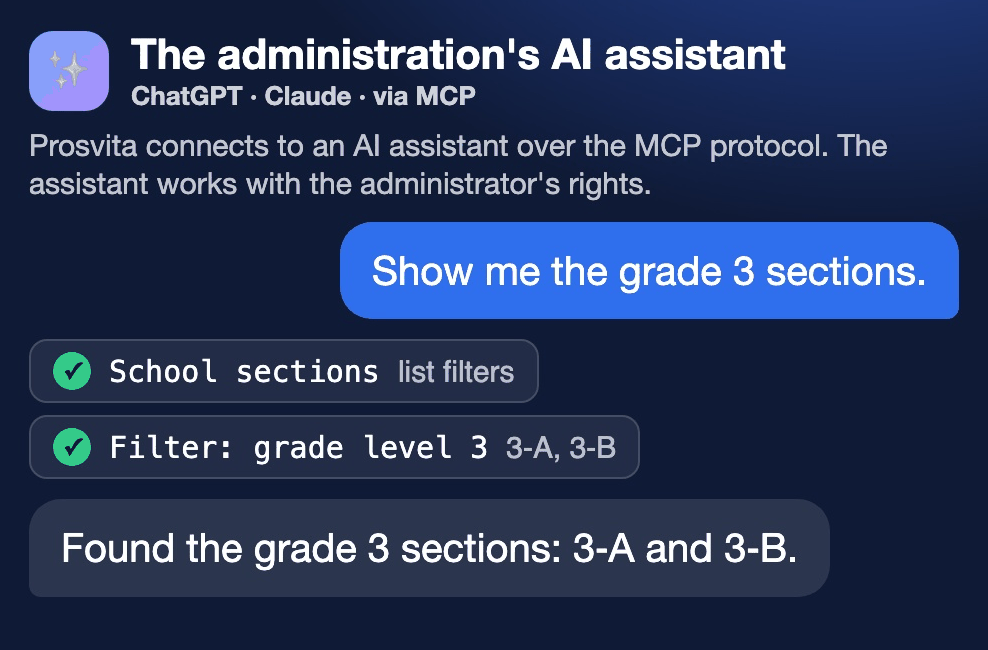
Use case: A deputy head is preparing a parents' evening for grade 3 and writes to the assistant: "Show me the grade 3 sections." Instead of the school's whole list, the assistant returns only 3-A and 3-B, and then builds the list of students to invite from those two sections.
Gamification: separate modules and permissions
Gamification in Prosvita has several parts, and schools need to open them to different people in different ways. In this release its permissions became more precise.
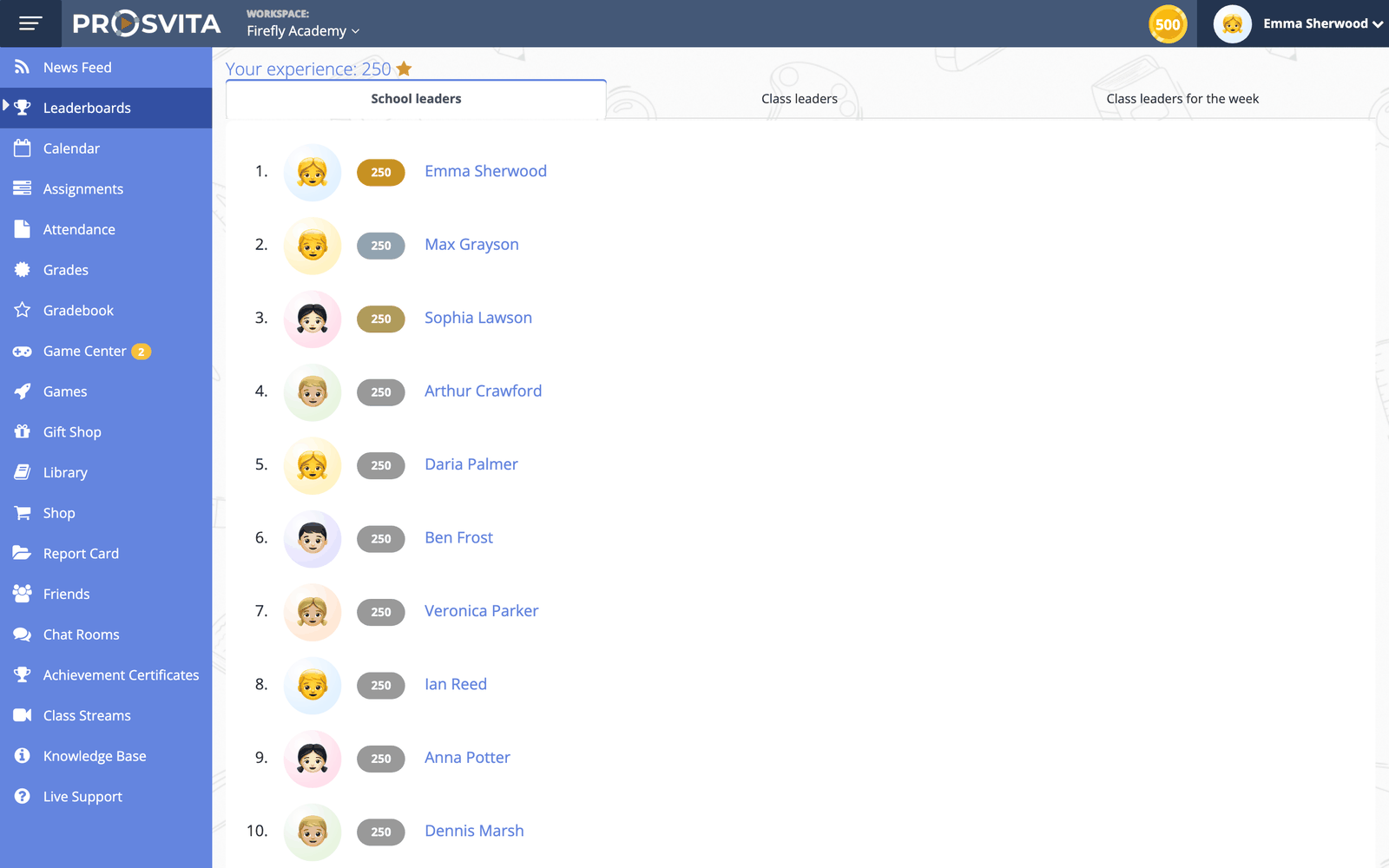
Leaderboards are now a gamification module with their own permission group. A school can turn the module on and decide who sees the rankings, the same way as for the other gamification modules.
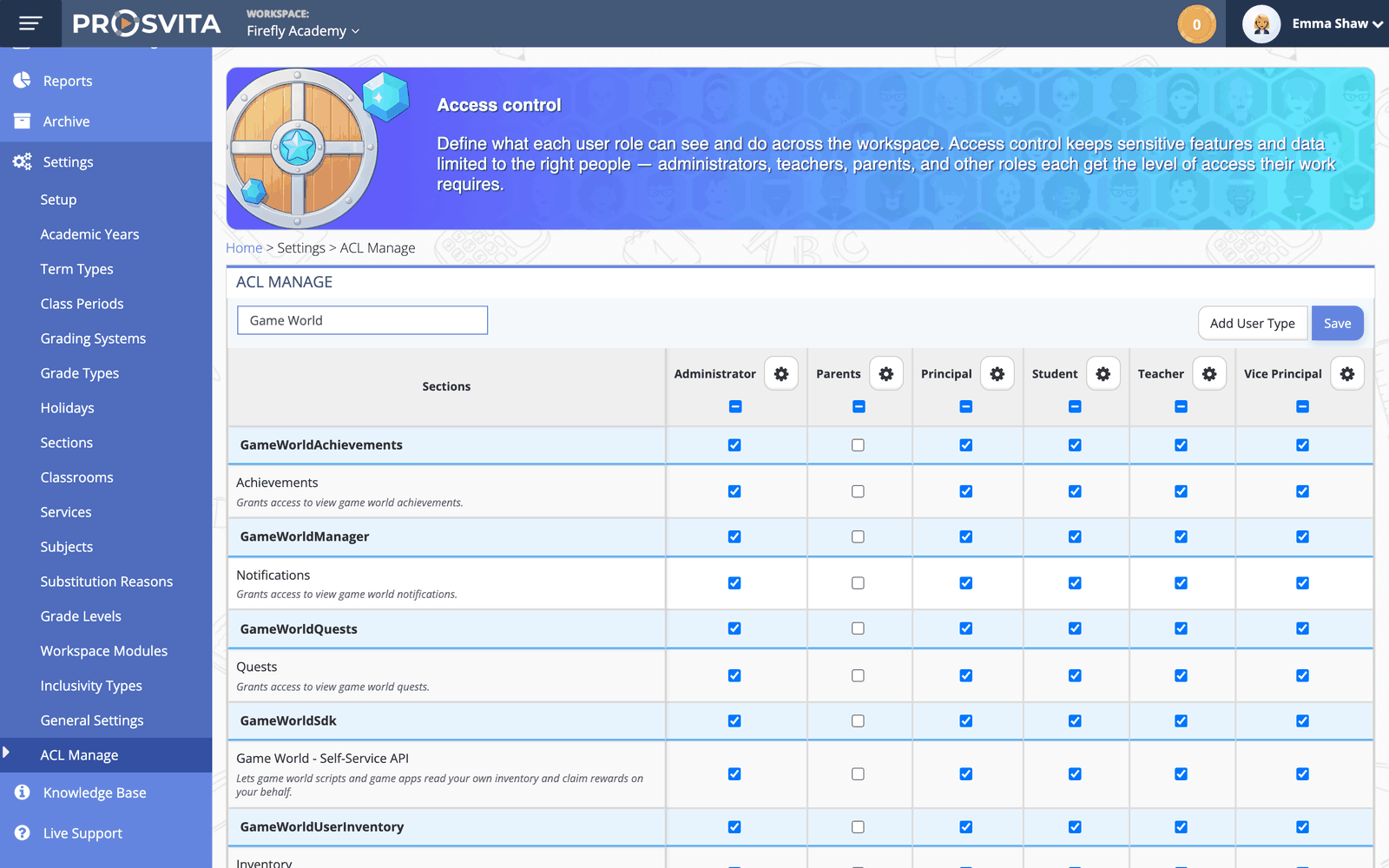
On the permissions page the group that manages gamification is now called Game World Manager, and it disappears when the module is turned off. Quests, Game World Achievements and Game World User Inventory have their own permission groups, so a school can, for example, let a teacher create quests without opening students' inventories to them.
Quests, achievements and gamification events also gain a new event: a user joined the school. It can drive, for example, a welcome achievement for every new student.
Use case: A school launches gamification for its younger grades. The administrator turns Leaderboards on for teachers only, gives homeroom teachers the Quests permissions and leaves the inventory to the coordinator. Every new student added to the school receives a Welcome achievement straight away.
Invitations: clearer names
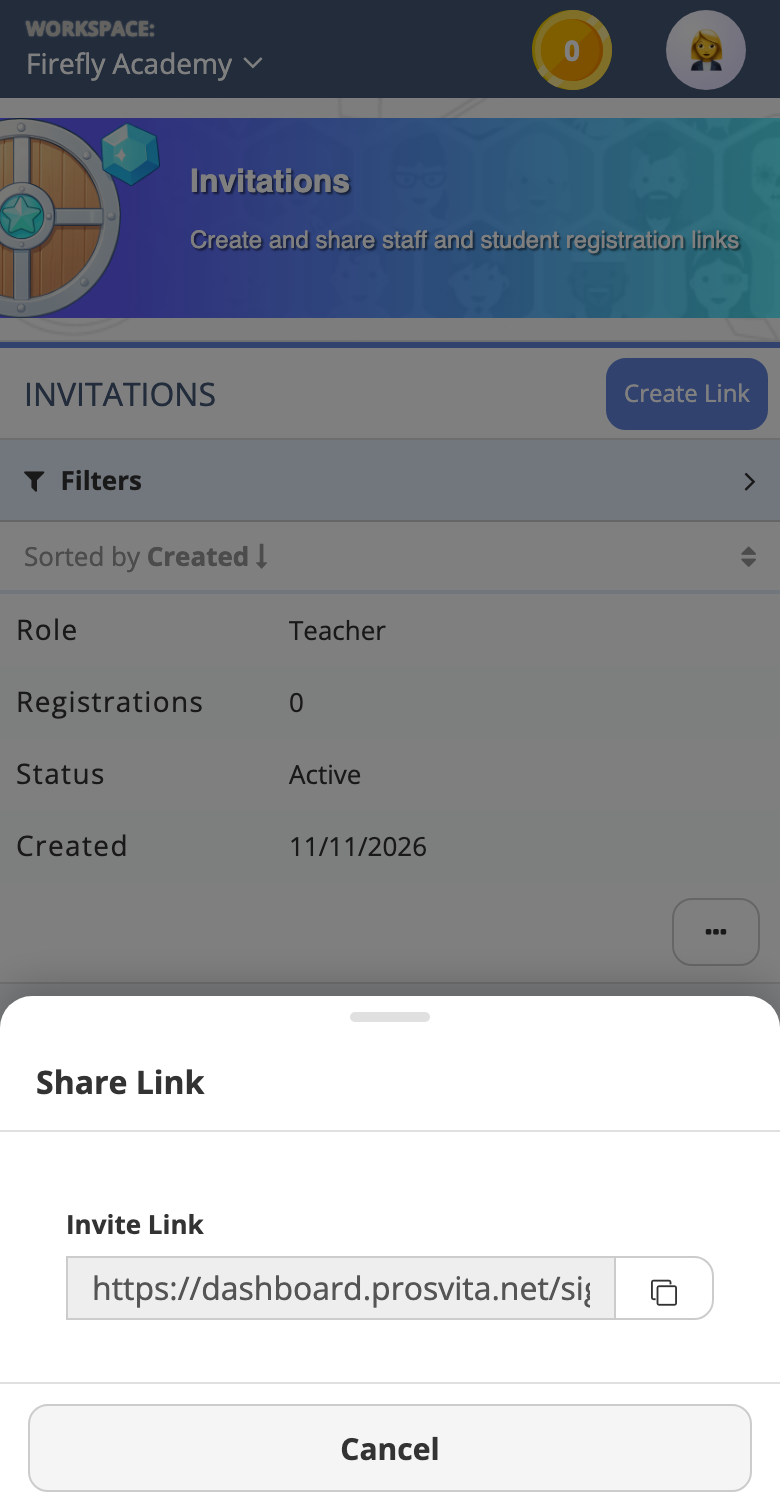
The Invitations page we introduced in v3.54 now uses names that explain each action better. Copying a link is now called Share Link, and the field in that dialog is Invite Link. The action that lists who signed up is now History, and the Active column became a Status column that shows the link's state the same way as other statuses across the platform. Every title on the page is in Title Case.
Roles created without the Staff or Student flag now appear in the invitations list as well. Before, such a role could not get a link.
Use case: A school creates a separate Librarian role without the staff or student flag. The administrator sees it on the Invitations page straight away, creates a link and sends it out with Share Link.
Notifications: every setting in your language
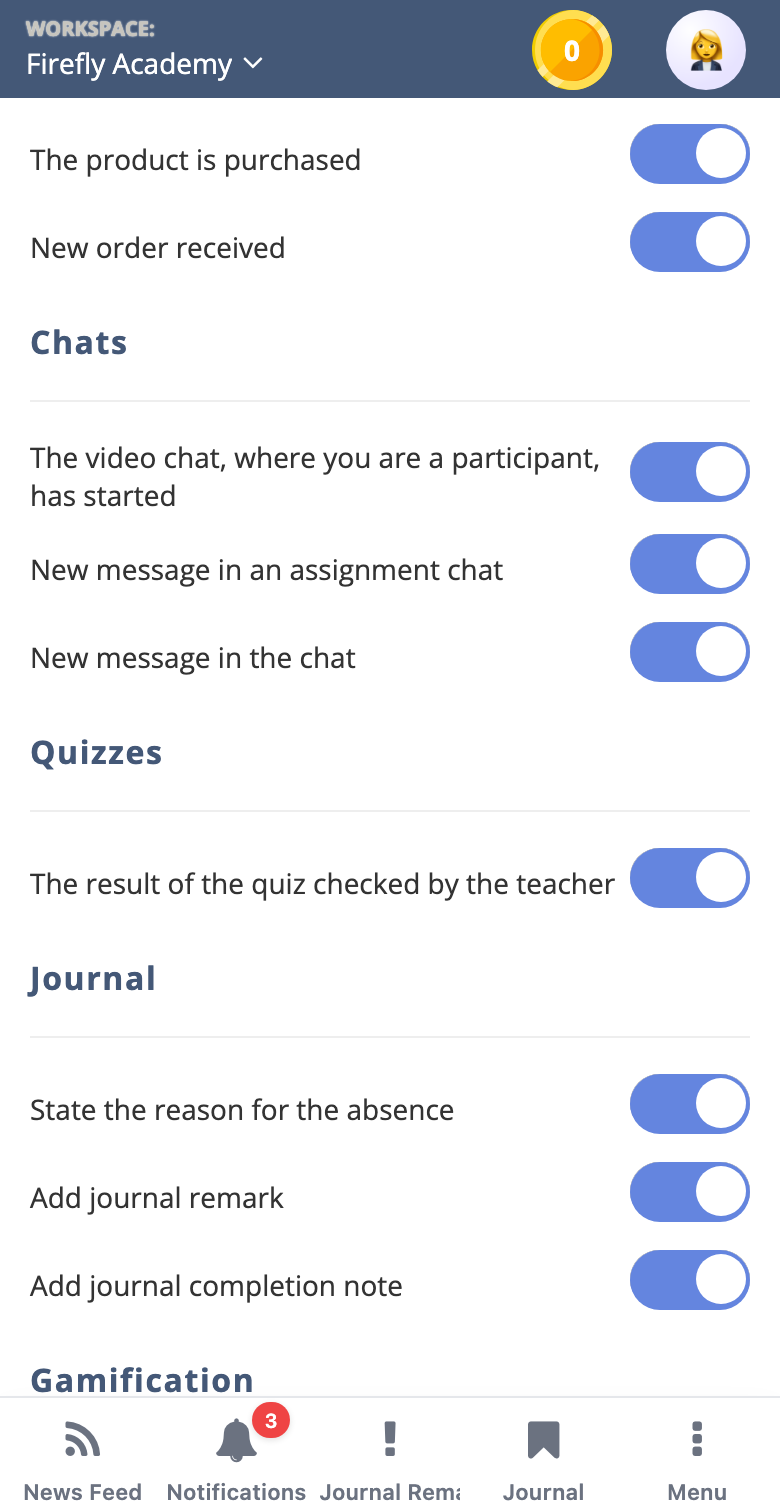
In the user profile, on the notifications tab, every notification type now has a name in the interface language: new homework, a new chat message, a new grade for parents, a journal remark, a competition starting and ending, a parent request, and individual education plan meetings. Before, some of them stayed in English in the Ukrainian interface.
Each setting is now listed once: the repeats in the Homework, Shop and Chats sections are gone.
Use case: A grade 3 student's mother decides which notifications to receive. She opens her profile, sees a clear list with no repeats, and turns off competition notifications while keeping grades and homework.
Fixes for administrators
A workspace created from a template opens again with all of the template's modules and settings, with no permission errors.
The Super School archive of teachers and students shows again which school a person was removed from.
For a new school in a Super School, the Subjects step in Setup is marked complete when the school inherited its subjects from the Super School.
In the Staff list, Activate no longer appears for someone who is already active.
When a principal signs the platform agreement, the signature now appears in Signature Records with the signer, the document and the time.
For the Prosvita team: suspending a school
A platform Super Admin can now suspend a school in the Schools section of the admin panel. After confirmation the school's status changes to Suspended, and the panel shows it straight away. No other role can do this.
Software release notes
New features
- The AI assistant filters lists over MCP by text, value and range
- The AI assistant's list of tools takes into account the user's roles in all of their schools
- Structured platform answers for the AI assistant
- The AI assistant views a student's gamification inventory and adds objects to it
- Leaderboards as a separate gamification module with its own permissions
- Separate permission groups for Quests, Game World Achievements and Game World User Inventory
- A gamification event for a user joining the school
- New names on the Invitations page: Share Link, Invite Link, History, the Status column
- Suspending a school by a Super Admin
Fixes
- A workspace created from a template has all its modules and settings with no permission errors
- The Super School archive shows the school a person was removed from
- The Subjects step is complete for a school that inherited subjects from its Super School
- Activate is not shown for an active staff member
- A principal's signature of the platform agreement is recorded in Signature Records
- Roles without the Staff or Student flag appear on the Invitations page
- The Game World Manager group is hidden when the module is turned off
- Every notification name in the profile is translated
- Repeated notification settings removed
How to start using the new features
The new names, notifications and fixes work right after the update. Leaderboards are turned on in the school's modules, and the gamification permission groups are set on the permissions page. To let an AI assistant use filters, connect it to Prosvita over MCP. Leave a request, and we will help with any of this!
Frequently asked questions (FAQ)
How does the AI assistant know which filters a list has?
Can the assistant see more than I can?
Can students see Leaderboards while gamification management stays with administrators?
What does the new "user joined the school" event give me?
Did the invitations themselves change?