Prosvita v3.51: the platform in your school's colours
Prosvita v3.51 is about how the platform looks. Until now the interface was every user's private business: a student, a teacher and a principal could open the same journal in different themes, and no institution could make its own space look like its own.
The main change in this release is the workspace skin. An administrator picks the look for the whole institution in general settings, and everyone working in that space sees the same thing. Next to the skin sits the mascot, the institution's character, who greets people at sign-in and turns up at the moment a student earns something. Colours, typography and the logo carry across every screen, so the platform stops being a neutral system and becomes part of the school's brand.
The second change is about names. A person now has a global profile name plus a separate name inside each workspace. A teacher working in two institutions can be "Олена Ковальчук" in one and "Olena Kovalchuk" in the other, and each institution sees the name it uses.
The release also fixes something that quietly spoiled reporting: a corrected grade entered after an attestation mark now reaches the report card and the summary report, and the report card itself generates even for institutions with a very long official name. Alongside that, nineteen defects in the journal, the mobile app and the parent account are gone.
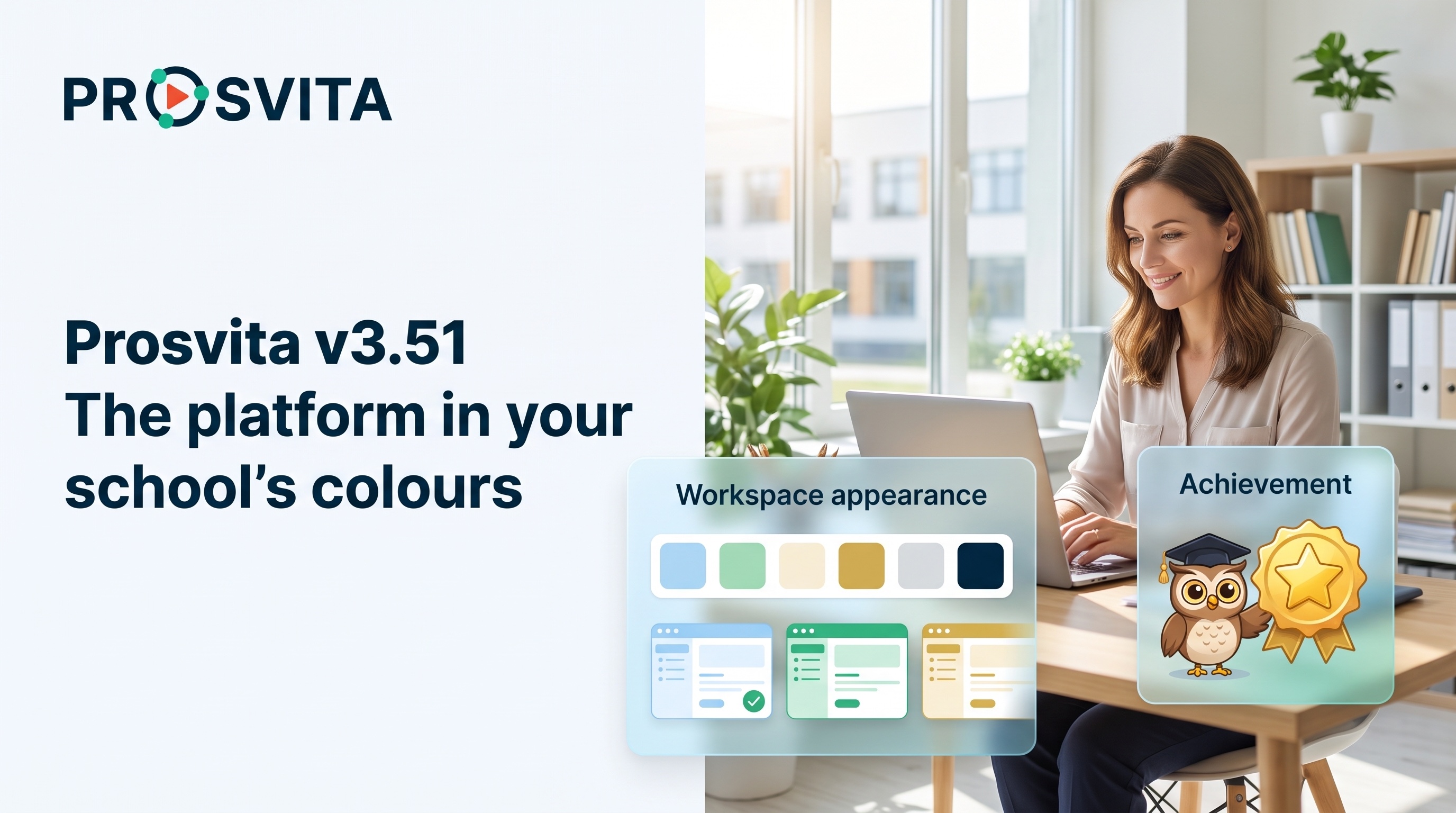
Key capabilities for educational institutions
The workspace skin: the institution decides how the platform looks
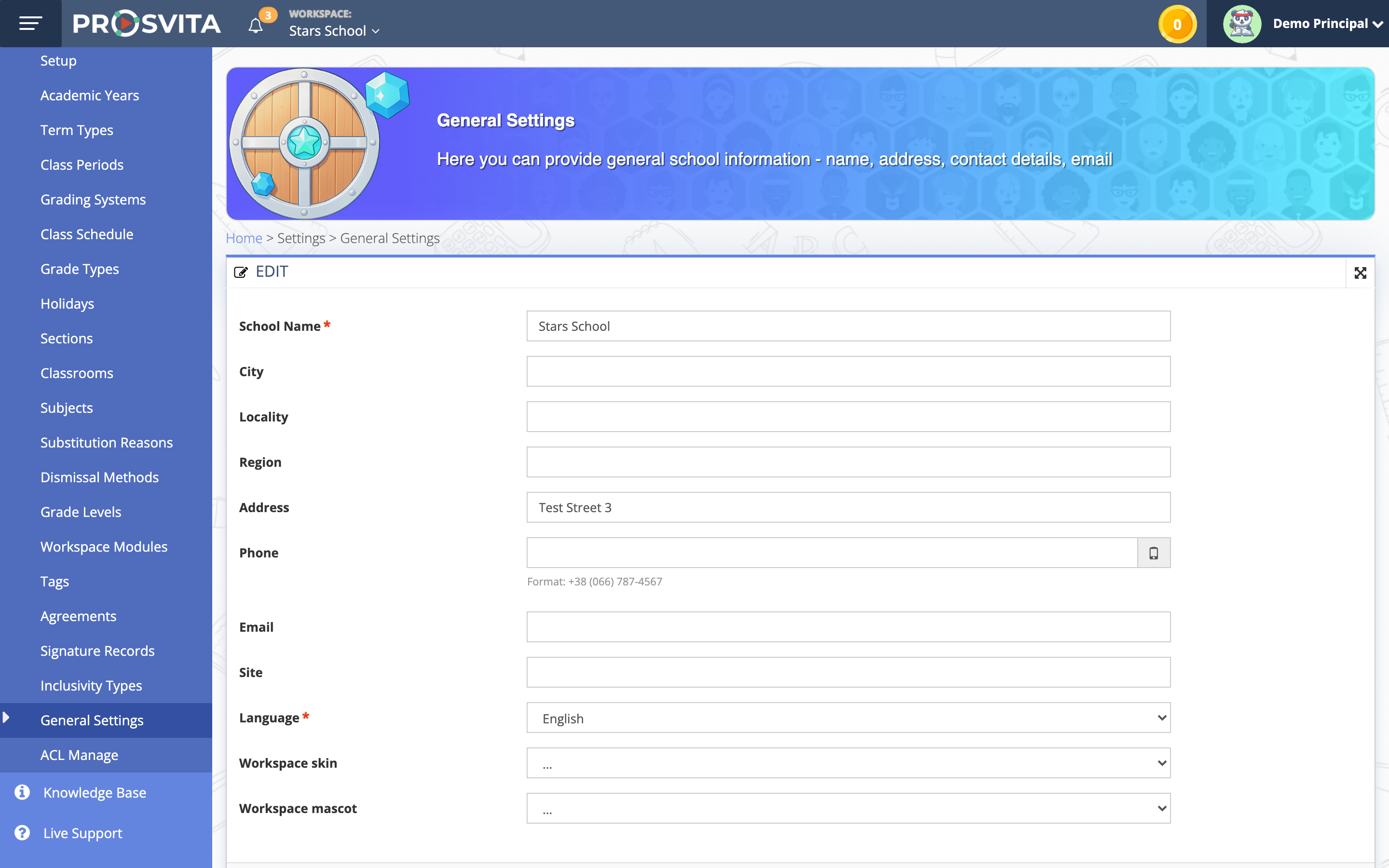
General settings now carry a "Workspace skin" field. An administrator picks the look once and everyone in the space sees it: teachers, students, parents and administration.
When a skin is assigned and locked, it takes priority over the user's personal theme. When the institution assigns nothing, everything works as before: each person sees the design theme they chose in their own profile. Nothing breaks for institutions this change does not interest.
People working in several institutions are worth a separate word. The skin belongs to the space, not to the person, so moving between institutions changes the look to the one that belongs to the space you entered. It is a fast and useful hint about where exactly you are working right now.
Creating new skins still sits with the Prosvita team. An institution picks from the looks available to it, and a new one is prepared together with us on request.
Use case: A private school wants the platform to look like its website and its printed materials. The administrator opens general settings, picks the school's skin and locks it. The next morning every teacher and student signs in to the school's familiar colours, and nobody has to set anything up for themselves.
The mascot and the institution's visual identity
Next to the skin, settings carry a "Workspace mascot" field. This is the institution's character, and it does not appear everywhere at once, only where the interface talks to a person: the sign-in screen, empty states before any data exists, and the moments when a student earns an achievement or a reward.
A visual identity is more than a logo. The palette, the typography and the look of buttons, forms and navigation follow the institution's style, so the platform reads as an extension of it rather than an outside system people have to work in.
The look always stays inside one institution. Other workspaces on the platform never see it and keep their own.
This release also returns the Modern look to the shared template set, where it now works as a skin. It used to live a life of its own and drifted away from the rest of the platform, which meant new capabilities reached it late. Now there is one template base, and the skin is responsible for appearance only.
Use case: A school with its own character in its brandbook asks for it on the platform. After that a first-year pupil opening the app meets a familiar hero from the school walls at sign-in, and when they finish a task and earn a reward, the same hero congratulates them on the achievement screen.
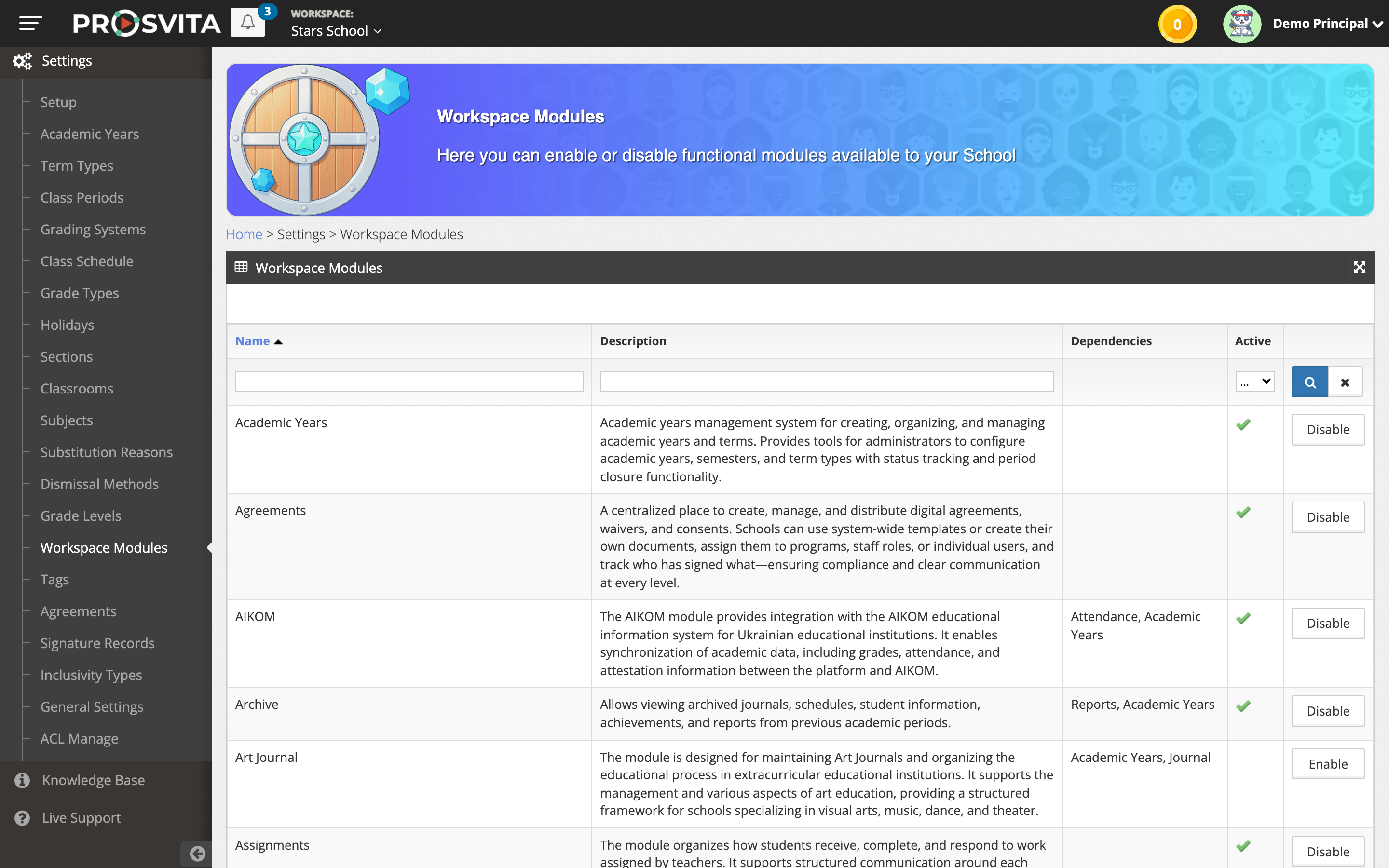
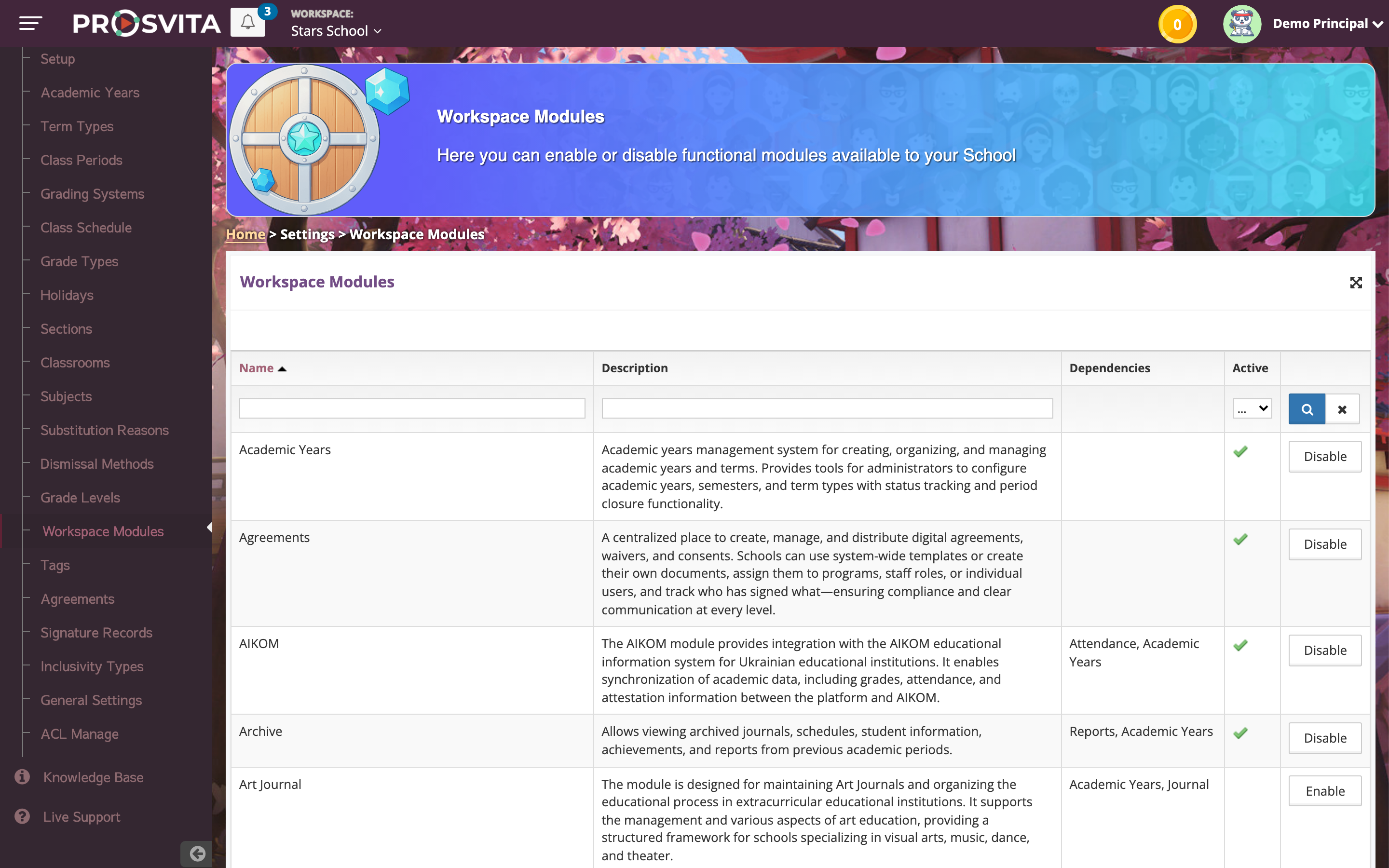
The same platform screen in two different skins:
One person, the right name in each institution
A name used to be a single value for everything. That is awkward for anyone working in several institutions, or in several language environments.
Now the profile holds a global name, which the person edits themselves, and each workspace can hold a name of its own. Where a workspace name is set, that is the one used there: in lists, in the header, in the journal and in forms. Where it is not, the global profile name is used instead.
The right to change a name inside an institution depends on permissions. A user can always edit their own global name, while the name inside a space is changed by whoever the institution allows. A school can hold one naming standard without taking a person's own profile away from them.
Two places where this logic used to break are fixed as well: in the add-assignment form, search matched the global name but displayed a different one, and a new user added by an administrator appeared in the staff list with no name at all.
Use case: A teacher runs English in two institutions: a Ukrainian school and an international centre. In the first her name is written in Ukrainian, in the second in Latin script. She switches nothing by hand: each institution sees her the way it writes names, and in her own profile she stays herself.
Report cards and the summary report show the corrected grade
A semester or annual grade is not always a number. It can be "not assessed", "exempted", "passed" or another attestation mark. When a student closes the subject after such a mark and receives a corrected grade, that grade is the final result.
Until now the corrected grade was visible in the journal only. It did not reach the Summary Students' Achievements report or the report card, so those documents showed the old attestation mark or an empty space, and teachers had to explain the gap between the journal and the report card to parents.
In v3.51 a corrected grade counts as the final semester or annual result and is carried into every report and report card. The original attestation mark no longer overrides it.
Report card generation is fixed too for institutions with a very long official name. A student or a parent used to get an error while the form teacher produced the same report card without trouble. The document now generates the same way whoever opens it.
Use case: A student missed a semester through a long illness and was exempted from assessment. In spring he covers the material and receives a corrected grade. The form teacher generates the report card and finds that grade in it rather than "exempted", so nothing has to be fixed by hand.
The journal, the mobile app and the parent account
Nineteen fixes in this release gather around everyday work.
In the journal, a student withdrawn today is no longer marked as withdrawn in the records for the dates when they were still enrolled, and those records can be edited again. The section filter shows all of a teacher's sections regardless of the selected period, not only those with classes in those dates. A lesson can be added on any date inside the academic year. Class tags can be edited and removed after saving.
On mobile, QR attendance is back in the journal, quiz buttons are no longer covered by the bottom navigation bar, and the Game Center inventory filter works in the mobile view.
Parents can finally open a note in their child's gradebook, and for students an upload no longer hangs after "Submit for review".
Use case: A form teacher opens the journal for November to finish marking. A student who moved to another school in March appears in the November records as an ordinary student, and she calmly enters what she had missed.
Software release notes
New features
- Workspace skin: an administrator picks the look for the whole institution in general settings
- A locked workspace skin takes priority over the user's personal theme
- Workspace mascot on the sign-in screen, in empty states and at achievement moments
- The institution's colours, typography, logo and component styling across its own space
- The Modern look returned to the shared template set, where it works as a skin
- A global profile name plus a separate user name inside each workspace
- The right to change a name inside an institution is governed by workspace permissions
- A corrected grade after a semester or annual attestation mark reaches the summary achievements report and the report card
- Report cards generate for students and parents regardless of how long the official institution name is
Improvements
- The support link on the sign-in page now points at the current help page
Fixes
- A note in a child's gradebook opens in the parent account without an endless loading spinner
- In the add-assignment form, search by name displays the same name the workspace uses
- The agreement opens from the child step during registration for a club or a course
- The workspace modules page returns to the right address after cancelling and after saving
- The assignment results page for a study group opens without an error
- Quiz buttons on mobile are no longer covered by the bottom navigation bar
- Search in the subsections dropdown works without hanging
- A new user added by an administrator is shown with a name in the staff list and in the header
- Class tags can be edited and removed after saving
- Only active academic years are offered in the report card creation form
- New sections appear in the table as soon as they are created
- A currently withdrawn student is not marked as withdrawn in journal records from the period of their study, and those records can be edited
- The journal section filter shows the same list regardless of the selected date range
- Achievement forms are created when a new school is added
- An administrator sees "Fill in" next to student names in achievement certificates again
- An upload no longer hangs after "Submit for review"
- QR attendance is available in the journal on mobile
- A lesson can be added on any date inside the academic year
- The Game Center inventory filter works in the mobile view
How to start using the new capabilities
The workspace skin and mascot are chosen by an administrator under Settings, in General Settings. A new look for your institution is prepared together with you: send us your brandbook and we add it to the skins available in your settings. Everything else in this release works as soon as you update, with nothing to switch on. Leave a request!
Frequently asked questions
Who picks the institution's look?
What does a user see if the institution assigned no skin?
Can a user change the look when the institution's skin is locked?
What happens when moving between institutions?
Can we add our own skin or mascot?
Why would a person need different names in different institutions?
Who can change a user's name inside an institution?
What goes into the report card if a corrected grade is entered after an attestation mark?