Prosvita v3.49: Assignment Templates and a Mobile-Friendly Journal
Prosvita v3.49 removes two of the most repetitive parts of a teacher's week: retyping a similar assignment from scratch, and scrolling an endless student list on a phone just to mark one lesson.
The headline change is assignment templates. A teacher formats an assignment once, with rich text, files and a quiz attached, saves it as a template, and creates every future assignment from it in a few clicks. A template can be personal or shared across the whole school, so teaching materials stop living in one person's private file.
The second visible change is the mobile journal. Class sessions are now grouped by date, and students open inside the date you need, so marking attendance and grades for one specific lesson takes seconds.
The release also tidies up subjects a school no longer teaches, and improves the quiz results PDF: it now carries the attempt date and time, and answer options finally export as plain readable text.
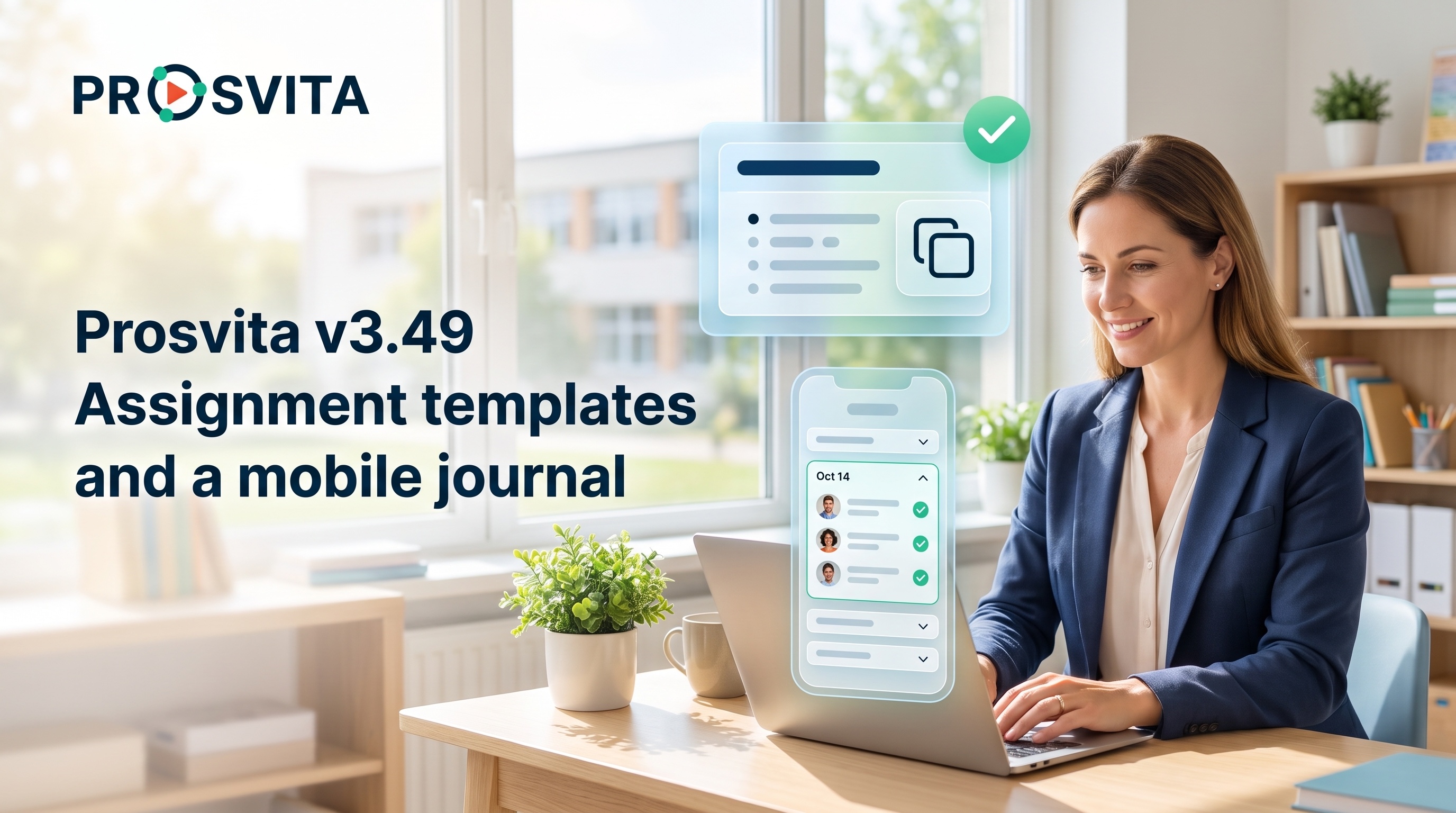
Key capabilities for teachers, school administrators and education networks
Assignment templates with rich formatting
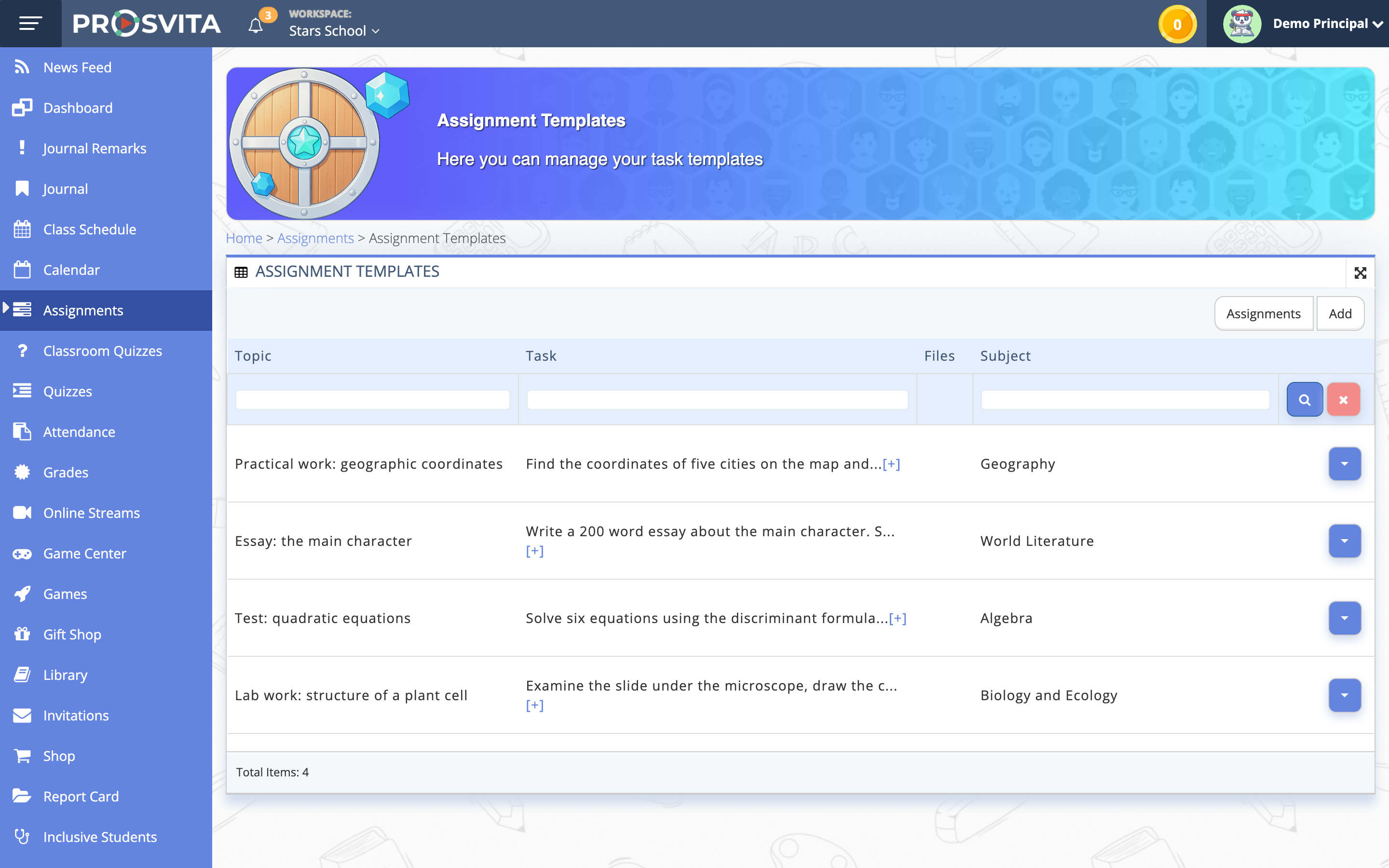
A teacher builds a template once: topic, a description with formatting (bold, italics, lists, links), files, a subject and an attached quiz. From then on, every new assignment can start from a ready template instead of being retyped each year.
Templates open straight from the assignments list through a dedicated Templates action. A teacher can pick a personal template or a school-wide one shared across the institution. Once an assignment is created, its data becomes independent from the template, so later template edits never rewrite assignments that are already out or distort past results.
Files from the template are copied into the new assignment automatically. The teacher adds their own materials on top, and while editing sees a single combined file list, both inherited and personal. Batch editing of active assignments works as before.
Use case: A biology teacher assigns the same lab work every year, with the same formatted instructions and worksheet file. Now she picks the "Lab work: structure of a plant cell" template, sets the class and due date, and the assignment is ready in a minute instead of twenty.
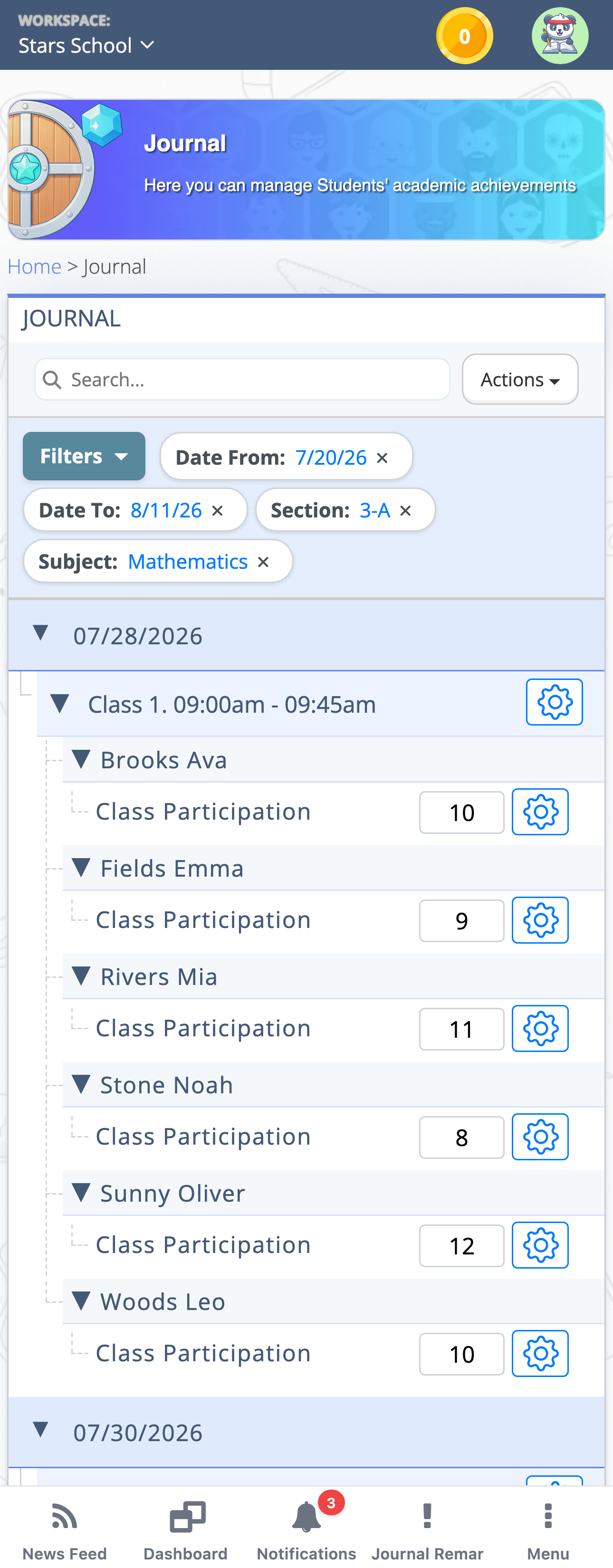
Mobile journal: sessions grouped by date
The mobile journal has been restructured. The top level is now class dates, and the student list opens inside the selected date. Dates are ordered from oldest to newest, and the journal opens with a session already expanded, so a teacher sees the class straight away instead of hunting for the right lesson.
Student fields are unchanged: attendance, grade, comments. Bulk actions apply within the expanded date, and filters and search behave as before: when a filter is active the dates stay in place and only matching students appear inside.
The desktop journal is unchanged; this update applies to phones only.
Use case: A PE teacher marks attendance from the field on a phone. He opens the journal, sees the session already expanded, and marks the whole class in place instead of scrolling every student of the term.
A current subject list without losing history
Schools accumulate subjects that are no longer taught, and records from past years used to block their removal. In v3.49 such a subject can be removed from the school's list even when lessons, grades or reports still reference it.
Historical data is untouched: grades, lessons, schedules and reports from previous academic years remain available. The subject simply stops appearing when creating new schedules, lessons and assignments. The change applies to that school only and does not affect other institutions in the network.
Use case: A school administrator removes three subjects that have not been taught since last academic year. The list becomes clean, teachers stop picking the wrong entry when building a schedule, and last year's grades stay in the reports.
Quiz results PDF: date, time and readable answers
The exported quiz results PDF now shows the date and time of the student's attempt alongside the student name, quiz title and score. A teacher sees not only the result, but exactly when the work was done.
Alongside it, a long-standing export problem is fixed: answer options could previously land in the PDF in a raw technical format that made the document unreadable. They now print as plain text.
Use case: A homeroom teacher prepares materials for a parents' meeting and exports the test results to PDF. The header carries the attempt date and time, and every answer option reads as normal text, so the document can be shown to parents as is.
Software release notes
New features
- Assignment templates: create and reuse assignments with a formatted description, files, subject and quiz, opened through a dedicated Templates action in the assignments list
- Personal and school-wide templates: a teacher picks their own or the institution's shared template, and the data is copied into the new assignment and stays independent afterwards
- Mobile journal with sessions grouped by date: students open inside a date, and the journal opens with a session already expanded
- Attempt date and time in the quiz results PDF
Improvements
- Bulk actions in the mobile journal apply within the expanded date, with filters and search unchanged
- Template files are copied into the assignment and shown as one combined list with the teacher's own files while editing
- Subjects that are no longer taught can be removed from a school's list even when records from past years exist, with historical data left intact
- Clearer action labels while working with assignments
Fixes
- Answer options in the quiz results PDF export as plain text instead of a raw technical format
- An empty option in a matching question is no longer counted as incorrect, so partial scoring is calculated correctly
How to get started with the new capabilities
Assignment templates live in the Assignments section: open the Templates action, build a blueprint with a formatted description and files, then create new assignments from it with the Add button. The updated mobile journal and the readable quiz results export work automatically right after the update. Contact us!
Frequently asked questions (FAQ)
What are assignment templates in Prosvita?
How is a personal template different from a school template?
Will assignments already sent out change if I edit the template?
What changed in the journal on a phone?
Do grades disappear if a subject is removed from the school list?
What is new in the quiz results export?